
This Claude Code Productivity Hack Will Save You Hours
The Claude Code productivity hack most people overlook isn't a prompt trick. It's two settings buried inside the VS Code extension that completely change how you work.
How Claude Code Productivity Actually Breaks Down
You've been there. Claude Code asks for permission. You click yes. It asks again. You click yes again. Ten minutes in, you've approved the same thing six times and your flow is completely broken.
This is the default behavior, and it's killing your output.
If you're running Claude Code for real work, marketing tasks, content creation, or business workflows, you don't need a babysitter checking in every two minutes. You need it to run.
Here's how to fix it. Open a new Claude Code chat inside VS Code, click the slash icon, and type config. Select "General Config under Settings." That opens the Claude Code extension settings panel.
Find the setting called Claude Code allow dangerously skip permissions and check it on.
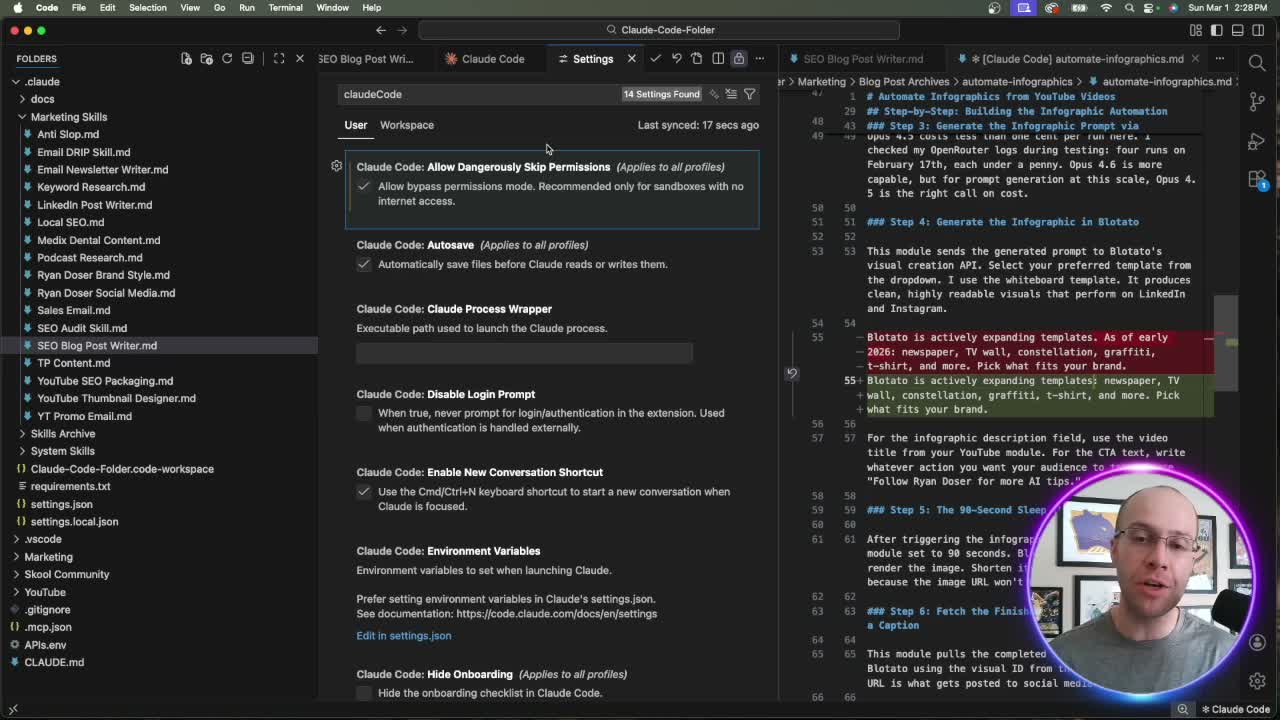
I know. "Dangerously" sounds alarming. It's not as scary as it reads. If you're instructing Claude Code to delete files or do something destructive, yes, that's a risk. But if you're generating social posts, drafting emails, or running content workflows? The risk is essentially zero. Use your judgment.
Once that's enabled, go back to Claude Code. On the bottom left of the chat, you'll see your mode options: plan mode, bypass permissions, ask before edits, edit automatically. Click through until you land on bypass permissions.
From that point forward, Claude Code runs tasks start to finish without stopping to ask.
Run Multiple Claude Code Tabs at the Same Time
Here's where the Claude Code productivity gains get real.
Most people run one Claude Code session at a time. That's a bottleneck you don't have to accept.
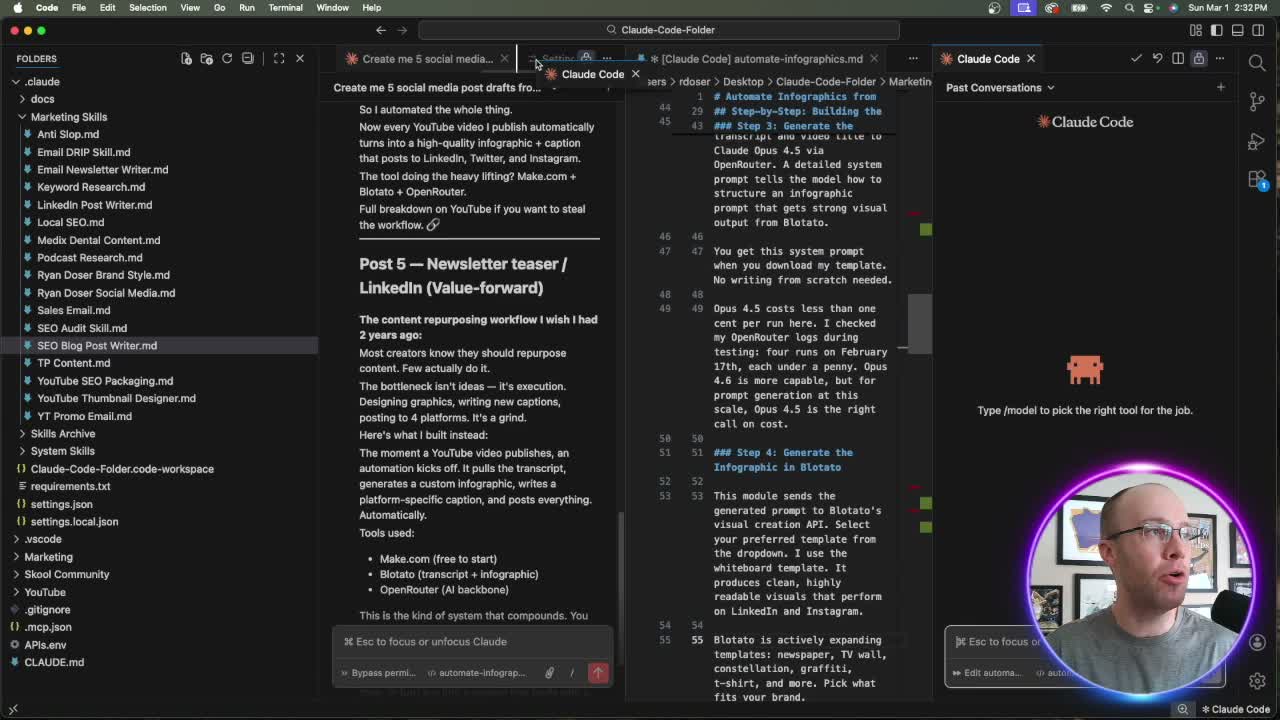
Go back to that same settings panel. /config in a new chat, click "General Config." This time, look for Claude Code preferred location. By default it's set to "sidebar." Change it to panel.
That's it.
Once you switch to panel mode, Claude Code lives in tabs at the top of your VS Code window instead of locked to the sidebar. Open a second tab. Open a third. Each one runs independently.
Now combine this with bypass permissions. Start a task in tab one. Open tab two, paste a different task, hit send. Both run in parallel, neither waiting for the other.
I tested this live in the video above. Gave both tabs the same prompt to generate social media posts from a YouTube video URL. Tab two finished before tab one. Both came back clean with no permission interruptions.
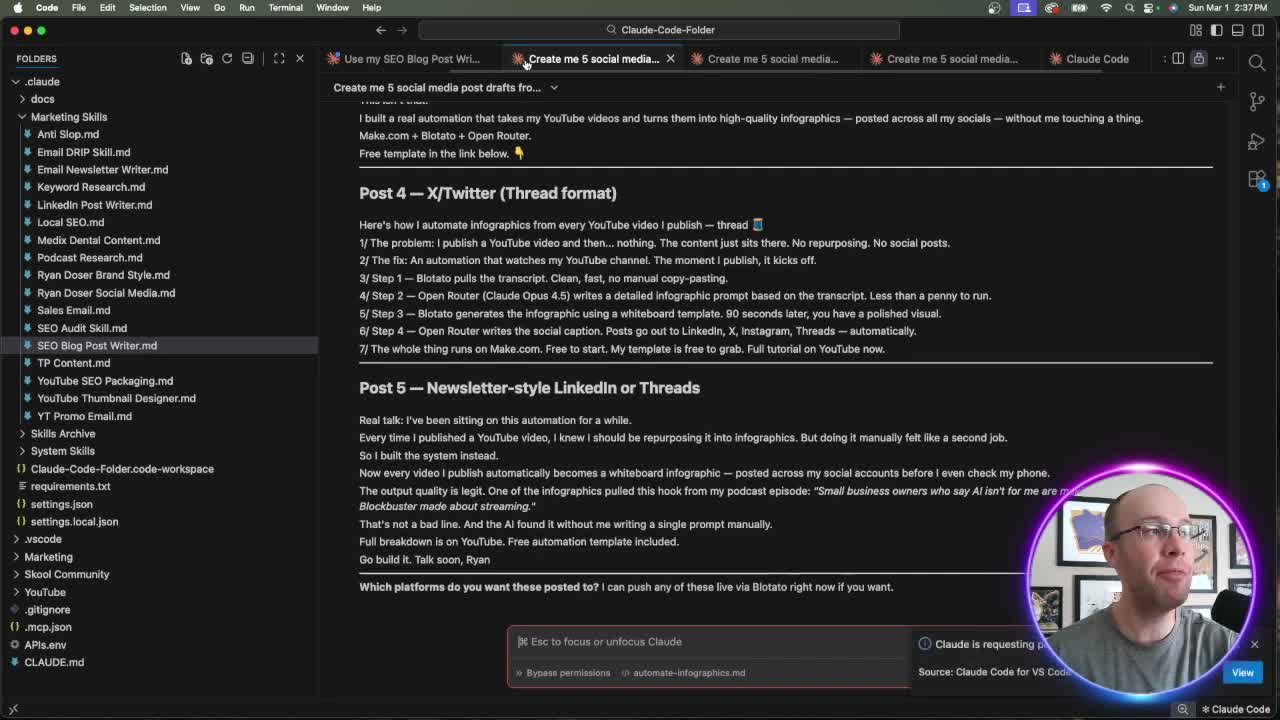
Think about what that means for batch work. If you have five pieces of content to create, you don't run them one at a time. You open five tabs, start all five, and walk away. Come back to completed drafts.
Each tab can run different Claude Code skills for different tasks. My Claude Code Skills Stack has 20+ skills I use daily to automate marketing and content creation with a one time fee and lifetime updates.
What to Know About Usage and Scale
One honest caveat worth mentioning on this AI productivity hack: your plan matters.
I'm on Claude Max at $100 a month, which gives me more runway than Claude Pro at $20. If you're on a lower tier, you'll hit usage limits faster when running parallel tabs. That's not a reason to avoid this workflow. Just know your ceiling and plan accordingly.
The Claude Code documentation is worth bookmarking if you're going deeper on setup. And if you're just getting started with the VS Code extension, VS Code's AI documentation covers the basics of how extensions work inside the editor.
For context on how permission models work across AI coding tools, Anthropic's research on Claude's character is a useful read. It explains why the default permission behavior exists and what the tradeoffs are.
The bottom line: bypass permissions removes friction for trusted workflows. Multiple tabs remove the bottleneck of sequential execution. Together, they turn Claude Code from a capable tool into a system that actually scales.
Ryan's Final Thoughts
Two settings. That's all this is.
Enable bypass permissions for tasks you trust. Switch to panel mode for multiple tabs. Run them in parallel and watch your output per hour go up without adding more hours to your day.
If you're using Claude Code for marketing, content, or business workflows, this is the Claude Code hack that pays for itself in the first week. You're not waiting on AI anymore. The AI is waiting on you.
Claude Code Productivity Hack FAQs
Is it safe to enable "dangerously skip permissions" in Claude Code?
For most marketing, content, and business workflows, yes. The risk only matters if you're asking Claude Code to delete files, modify system settings, or take destructive actions. If you're generating content, drafting posts, or running standard automations, the exposure is minimal. Use your judgment based on what you're actually asking it to do.
How do I run multiple Claude Code tabs in VS Code?
Type /config in a new Claude Code chat, select "General Config," and find the "Claude Code preferred location" setting. Switch it from "sidebar" to "panel." Your Claude Code sessions will now appear as tabs at the top of the VS Code window, and you can open as many as you need.
Does running multiple Claude Code tabs at once use more credits?
Yes. Each tab runs its own session and consumes usage. If you're on Claude Pro ($20/month), you'll hit limits faster than on Claude Max ($100/month). Plan your parallel sessions based on your tier and the complexity of each task.
What's the difference between bypass permissions and auto-edit mode in Claude Code?
Auto-edit mode still pauses for certain high-risk actions. Bypass permissions removes nearly all approval prompts entirely, letting Claude Code run a task from start to finish without interruption. Bypass permissions is the more aggressive setting and works best when combined with tasks you've already validated.
Can I use bypass permissions and multiple tabs together for batch content work?
Yes, that's the whole point. Start a task in tab one with bypass permissions enabled, open tab two, start another task. Both run simultaneously without interruptions. For batch work like generating multiple social posts, drafting email sequences, or processing several pieces of content at once, this setup is a significant time saver.