
How to Turn Claude Projects into Skills (Get Better Results)
If you have a Claude Project you rely on every day, you can rebuild it as a portable skill you actually own. This guide on how to turn Claude Projects into Skills walks through the exact steps I use, no coding required.
Why Bother Converting a Project at All
A Claude Project is a workspace inside the Claude app. You give it custom instructions, upload some knowledge files, and every chat inside that project follows those rules. It works well, and I used projects for a long time.
The catch is that a Claude chat project does not automatically become a skill Claude Code can load. To reuse the instructions you carefully tuned, you still need to turn them into a skill folder.
A skill fixes that. Think of a skill as an SOP for AI, a folder built around one markdown file that teaches Claude how to do one task from start to finish. Because it is just files, you own it and it travels with you to tools that support the Agent Skills standard. That ownership gap is the whole reason I made the switch, and I broke down the same ownership argument in my post on Claude Skills vs Custom GPTs.
See How Skills Work First
Before the steps, here is a short walkthrough where I build and use a skill inside Claude Code. It makes the rest of this guide a lot easier to picture.
What You Are Actually Moving
Before the steps, get clear on what a project holds, because you are rebuilding three pieces.
The first piece is the custom instructions, the standing rules you typed into the project settings. The second is the knowledge, meaning the files or reference text you uploaded. The third is the unwritten part, the way you actually prompt the project once you are inside it.
A skill needs all three in one place. There is no one-click export that converts a project into a skill, so this is a manual rebuild. The good news is it takes minutes once you know the shape.
Step 1: Pull Your Project Instructions
Open the project and copy its custom instructions out of the settings. Paste them into a plain text file for now.
Read them with fresh eyes. Projects often collect vague rules over time, like "be helpful" or "use my brand voice." A skill rewards specifics, so tighten anything fuzzy into a concrete instruction Claude can actually follow.
Step 2: Gather the Knowledge
Next, collect whatever the project used as reference. If you uploaded PDFs, grab the source content as text instead.
This matters more than it looks. Claude reads markdown and plain text far more accurately than it reads PDFs, so save your reference material as markdown files. That one change alone made my outputs cleaner the day I figured it out.
Step 3: Capture How You Actually Use It
This is the step most people skip, and it is the one that makes a skill great. Open the project, run your usual task, and pay attention to the prompts you type and the corrections you make.
Those corrections are gold. Every time you tell the project "no, do it this way," that is a rule that belongs in your skill. Write them down as you go.
Step 4: Write the SKILL.md File
Now you assemble the pieces into a single markdown file called SKILL.md. At the top it needs a short block with two fields, a name and a description.
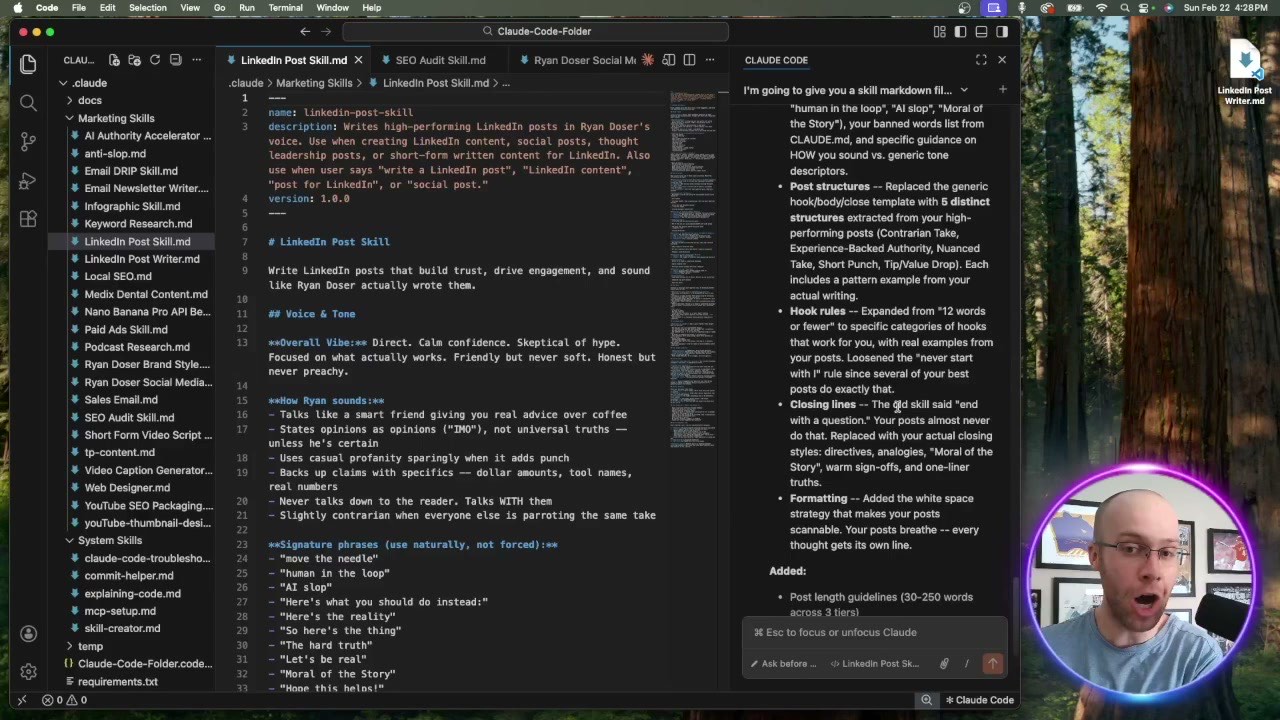
The description is the important one. Claude reads it to decide when to use the skill, so it should say what the skill does and when to use it. Below that block, paste your tightened instructions, your reference notes, and the rules you captured in step three.
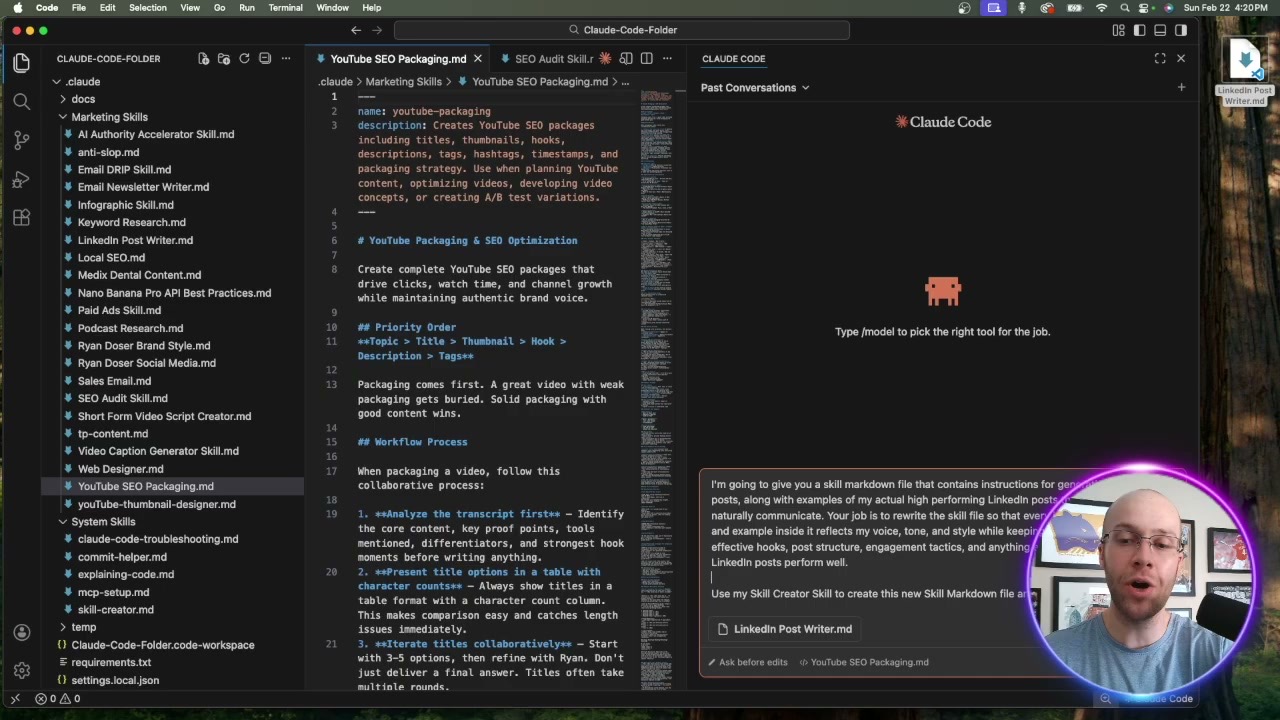
The lowest-friction way to do this is to not type it from scratch at all. Open Claude, brain-dump everything out loud, and ask it to draft the SKILL.md for you. There is even a skill-creator helper that scaffolds a clean skill file, so you start from a working draft instead of a blank page.
Step 5: Drop It In and Test
Where the file goes depends on where you work. In Claude Code, a skill is just a file in a folder, so you drop the skill folder into your skills directory (your personal one at the home path, or a project one inside the repo) and it is ready, no upload needed. On claude.ai, you zip the skill folder and upload it under Customize and then Skills, and you need code execution turned on under Settings and then Capabilities for it to run.
Then test it the same way you tested the project. Run your task, watch the output, and correct anything that is off. Here is the part that beats a project for good: when you correct a skill, you can have Claude patch the file itself, so the fix sticks forever instead of getting re-explained every session.
What This Looks Like In Practice
Picture a project you use to write LinkedIn posts in your voice. It holds your tone rules and a few past posts as examples, and it does a decent job inside the app.
Rebuild it as a skill and you can fold in the small corrections you always make by hand, like cutting weak openers or banning a few words you never use. The skill starts producing the post you want on the first try, and it sits alongside your other skills instead of living inside one chat project.
Picture the before and after. In the project, you typed the same three fixes into every chat: drop the throat-clearing intro, swap the corporate verbs for plain ones, and never open with a question. You did that by hand each time because you had not added those fixes to the project instructions. In the skill, those three fixes become written rules near the top of the file, so the very first draft already lands the way you want.
The most common mistake here is rebuilding the instructions but skipping the corrections. If you only move the official rules and leave out the fixes you make in practice, the skill behaves exactly like the project did, and you are back to editing every output by hand. The corrections are the part that makes the skill better than the thing you replaced. If you want to see the broader workflow, here is why marketers should use Claude Code in the first place.
Keep One Skill Per Task
One last rule that saves you headaches. Do not try to cram an entire project into one giant skill that does five things.
Break it into focused skills instead, one per task. A separate skill folder for blog posts, another for email, another for research. Claude reads the full instructions only for the skills that match your request, so smaller and sharper always wins. If you would rather start from proven files than build each one yourself, I packaged the exact skills I use to run my business into the AI Skills Stack.
Ryan's Final Thoughts
Turning a Claude Project into a skill is not a technical job, it is a copy, tighten, and rewrite job. You move the instructions, save the knowledge as markdown, capture how you really use it, and drop it into a SKILL.md you own. Do it once and you will never want to go back to instructions that only live inside one project. Start with the project you use most and rebuild it today.