
How to Switch from ChatGPT to Claude in 5 Minutes
Switching from ChatGPT to Claude is now a five-minute process, and Anthropic built a tool that does most of the heavy lifting for you. Here's exactly how this process works.
How to Switch from ChatGPT to Claude Using the Import Tool
You've probably accumulated months (or years) of context inside ChatGPT.
Preferences, project history, how you like things explained. Starting over with a new AI feels wasteful. Anthropic solved that problem.
Head to claude.com/import-memory and click "Get started." If you're already logged into Claude, it redirects you straight to the memory settings. If you're not, create a free account first. Memory is available on all paid plans.
What Claude Gives You to Copy
Once you're inside the import tool, Claude displays a pre-written prompt. Copy it exactly as-is. This prompt is designed to extract structured memory context from any LLM, including ChatGPT and Google Gemini.
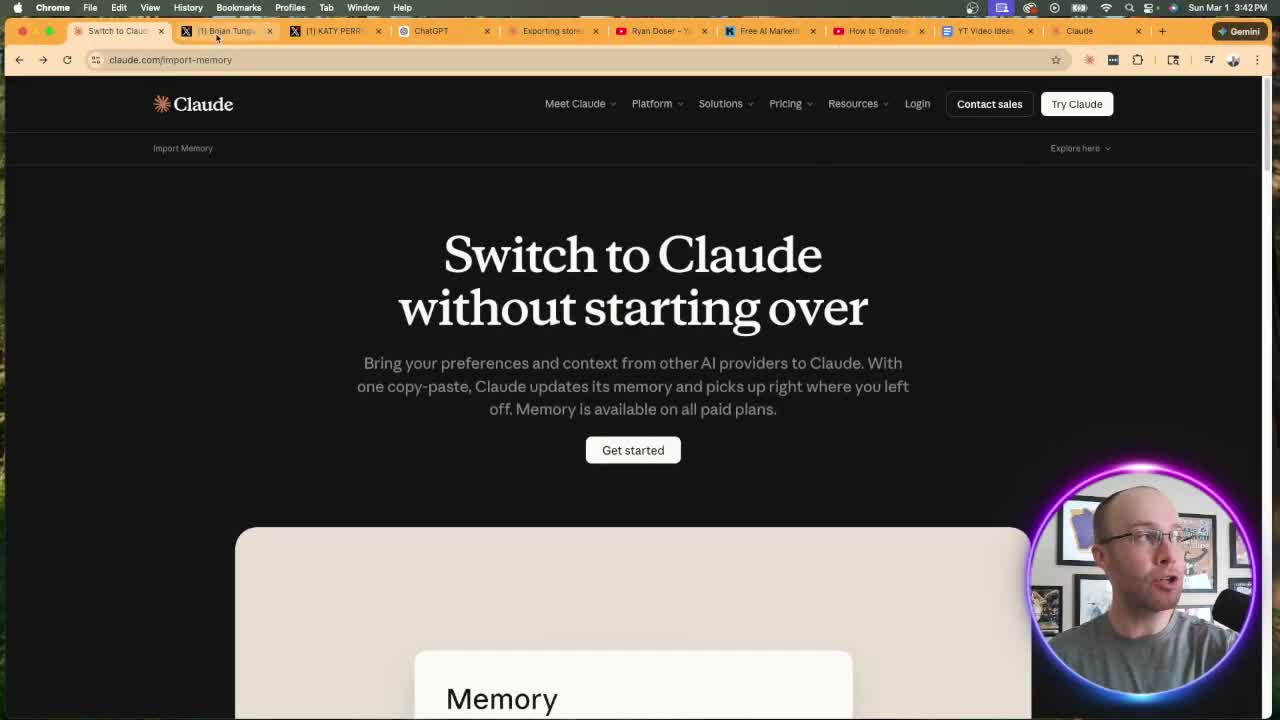 Anthropic's import memory page at claude.com/import-memory, where the ChatGPT to Claude transfer begins.
Open ChatGPT, paste the prompt in a standard chat, and hit send. Wait for the full response before copying anything.
One note: if you're on a paid ChatGPT plan, use a higher reasoning model. Ryan tested this with a standard response and the output was noticeably shallow. OpenAI has little incentive to surface detailed context when they know users are leaving. A thinking-mode model pushes harder on the prompt.
If you use a specific ChatGPT Project or custom GPT for certain work, run the prompt inside that project too. You'll get context that's relevant to that workflow, not just your general chat history.
The Honest Truth About ChatGPT's Output
Here's what you should expect: disappointment.
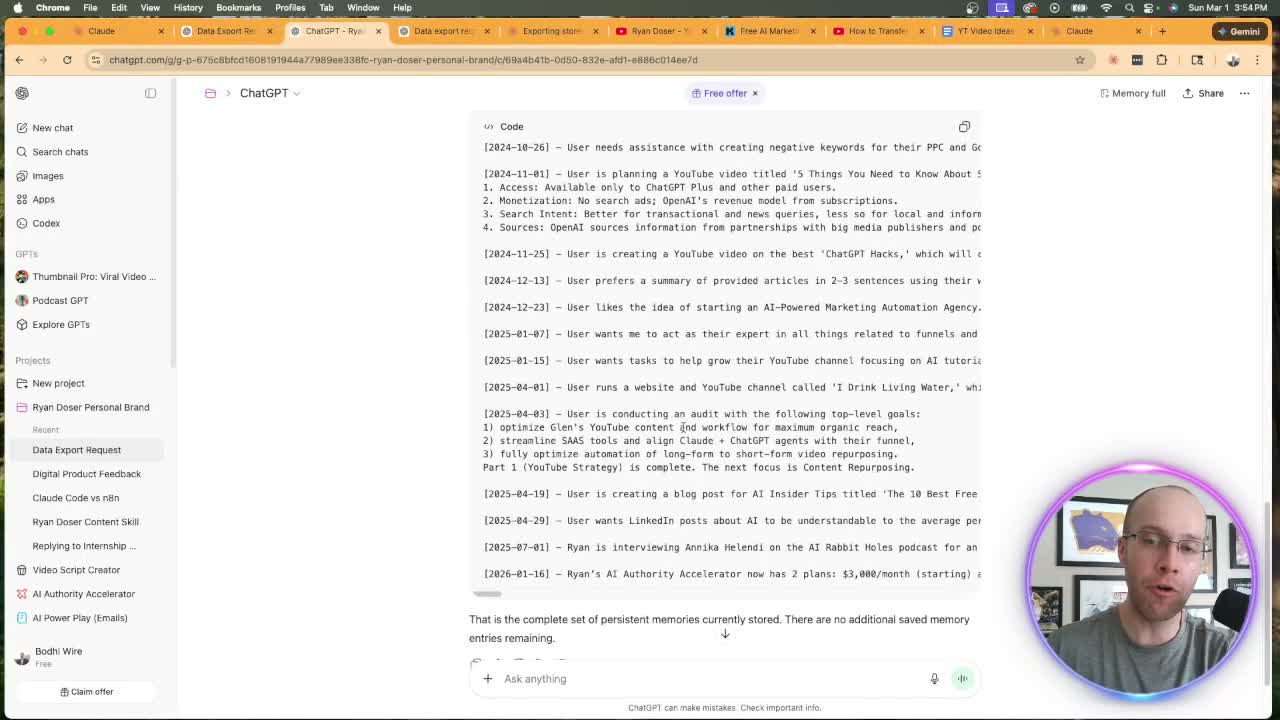
Ryan ran the prompt inside ChatGPT and the response started from September 2024, even though he had been a paid user since 2022. Over two years of daily usage, essentially missing.
That's not a bug. OpenAI is aware that Anthropic built this tool, and they know users are copying this prompt specifically to move away from ChatGPT. The incentive to produce a thorough memory export is minimal on their end.
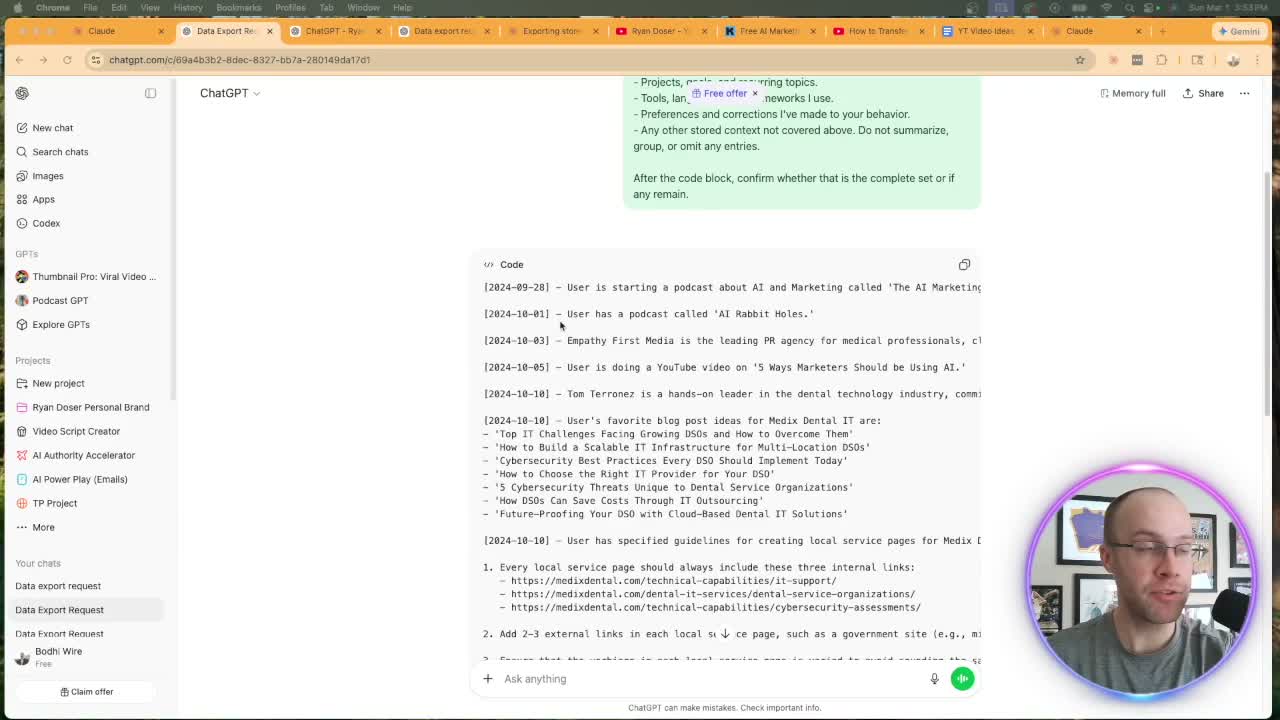
So set expectations accordingly. You'll get something, just not everything. What you do get is still better than manually rebuilding your context from scratch.
How to Paste the Memory into Claude
Take ChatGPT's response, copy all of it, and head back to the Claude import page. Paste the text into the memory details field, then click "Add to memory."
Within a few seconds, Claude processes the input and surfaces a summary. You'll see categories like work contacts, projects, preferences, and a brief interaction history. Click the pencil icon to edit or add anything Claude missed.
To verify what transferred, open a new Claude chat and ask: "What did you learn about me?" Claude checks the memory and returns a structured breakdown of everything it stored. It's a clean way to spot gaps before you rely on it for real work.
How to Do a Full ChatGPT Data Export Instead
The import prompt is fast, but it's not complete. For a proper transfer of ChatGPT to Claude, you want your full data export.
In ChatGPT, click your profile icon, go to Settings, then Data Controls. You'll see an option to export all your data. Request it. OpenAI emails you a download link, usually within a few minutes.
Fair warning: if you've used ChatGPT for a few years, that file is large. Ryan's was massive. The raw JSON export is not something you can just upload directly into Claude.
The workaround: use a terminal command to split the JSON file into smaller Markdown files. Once broken up, you can upload those individual files into Claude, Gemini, or NotebookLM without hitting file size limits. Ryan covers this in a separate tutorial on splitting the ChatGPT export.
For most people, the import prompt approach covered above gets you 80% of the way there in five minutes. The full export is worth doing if your ChatGPT history contains specific project context, client details, or workflow preferences you can't afford to lose.
Why People Are Making the Move
Claude has been the better model for marketing and content work for a while now. Ryan has used it for at least two years. The reason it's getting mainstream attention now comes down to branding.
Claude Code and Claude.ai's recent visibility pushed the name into the mainstream. Anthropic's Claude platform hit the top of the iOS App Store in late February 2026. Public figures started posting about switching publicly.
The reality is, for copywriting, content creation, and general business use, Claude produces better output than ChatGPT with less prompting effort. It follows brand voice guidelines more consistently. It holds context across long conversations without drifting. And it doesn't need five rounds of "make it less generic" before the output is usable.
That said, ChatGPT still wins in specific spots: real-time web browsing, quick image generation, and ecosystem integrations through the GPT store. The goal isn't to delete ChatGPT. The goal is to make Claude your primary workspace while keeping the other tools on standby.
You can read more about how Anthropic approaches Claude's values and character if you want to understand what makes it different at a design level. And if you want to review your own conversation history from Claude going forward, Anthropic's support page covers how to export your Claude history the same way you just did with ChatGPT.
Final Notes from Ryan
The process to move from ChatGPT to Claude takes under five minutes using the import tool at claude.com/import-memory. The output from ChatGPT is incomplete by design, but it's still a useful starting point. For a full migration, pair it with the data export method.
Claude is not perfect. No model is. But for marketing and content work, it's the one I'd start with in 2026. If you've been putting off the switch, this is the easiest it's ever been.
Switch from ChatGPT to Claude FAQs
How do I switch from ChatGPT to Claude without losing my history?
Use the import tool at claude.com/import-memory. Copy the provided prompt into ChatGPT, paste the response back into Claude's memory field, and Claude updates its memory automatically. For a complete transfer, also request a full data export from ChatGPT's Data Controls settings and split the file into smaller chunks before uploading.
Does Claude have a ChatGPT data import feature?
Yes. Anthropic launched an official import tool at claude.com/import-memory. It generates a structured prompt you paste into ChatGPT (or Gemini). ChatGPT returns your stored context, which you then paste into Claude. The feature is available on all paid Claude plans.
Is moving from ChatGPT to Claude worth it for marketers?
For most marketing use cases, yes. Claude handles long-form content, brand voice consistency, and detailed instructions more reliably than ChatGPT in most head-to-head comparisons. It requires less re-prompting to get usable output. ChatGPT still has an edge for real-time search and image generation, so many marketers run both tools.
Can you migrate ChatGPT to Claude for free?
The import tool requires a paid Claude plan. Claude Pro starts at $20/month. The process itself (copy-pasting the prompt and response) costs nothing beyond your existing subscription. If you're on ChatGPT Plus, you're already paying the same amount monthly.
What if the ChatGPT memory export is incomplete?
It likely will be. OpenAI's output from the import prompt is often shallow, especially for long-time users. To get more complete data, use ChatGPT Projects or custom GPTs to run the prompt in context-specific areas. For a thorough migration, request the full JSON data export from ChatGPT settings and break it into smaller Markdown files before uploading to Claude.