
How to Clone a YouTube Channel With AI (NotebookLM Hack)
This guide shows you how to clone a YouTube channel with AI in minutes using NotebookLM. The result is a research tool that actually sounds like the creator you're studying.
How to Clone a YouTube Channel With AI Using NotebookLM
Most people go straight to a custom GPT when they want to study a creator's style. That's the wrong move.
Here's the problem with custom GPTs: even when you upload knowledge files, the model still pulls from OpenAI's training data and the broader web. You're not getting a clean signal. You're getting a blend.
NotebookLM works differently. It pulls responses only from the sources you load into the notebook. No outside training data, no random web references. Every answer comes with a citation pointing to the exact YouTube video or document it pulled from.
That's a big deal when you're trying to clone a specific creator's voice and frameworks.
Two Chrome Extensions You Need First
Before loading any sources, install two Chrome extensions.
Grabbit lets you box-select multiple YouTube thumbnails and copy all their URLs to your clipboard at once. Without it, you're copying URLs one by one.
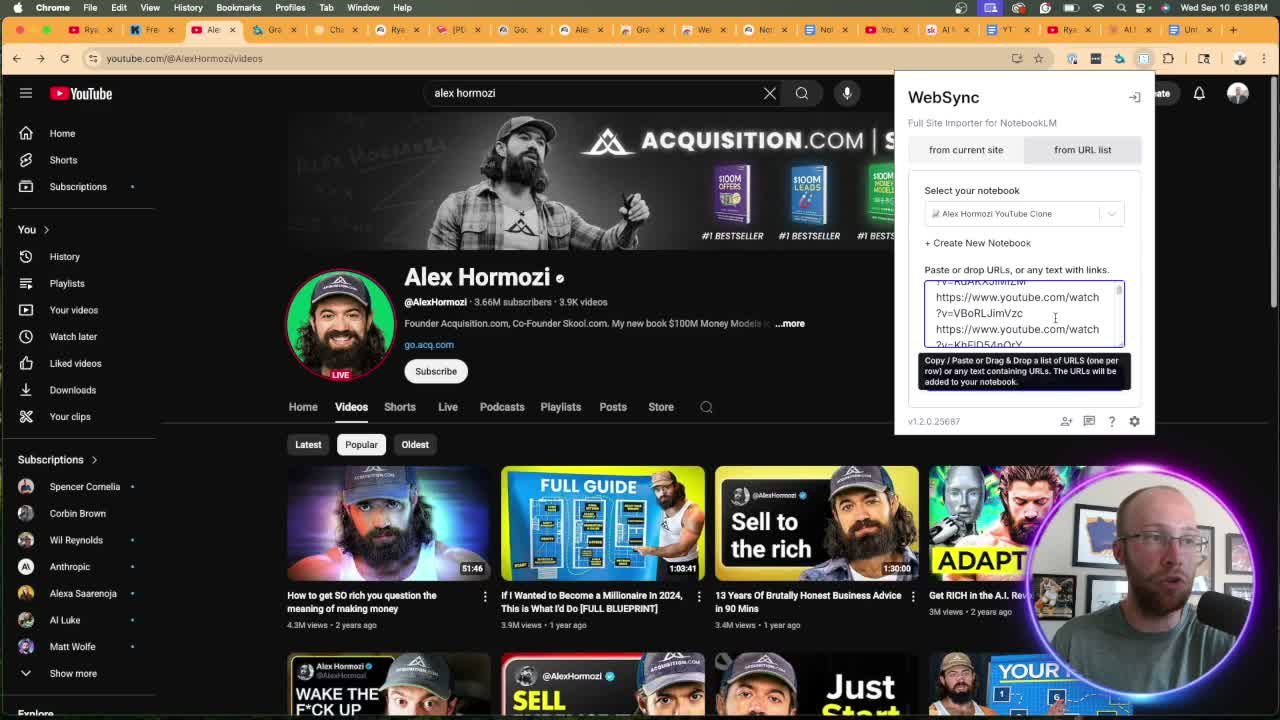
WebSync is a site importer for NotebookLM. Paste your URL list into it and it pulls everything into your notebook automatically.
Install both and pin them in your toolbar. Links are in the video description above.
Step-by-Step: Loading Sources Into Your NotebookLM Clone
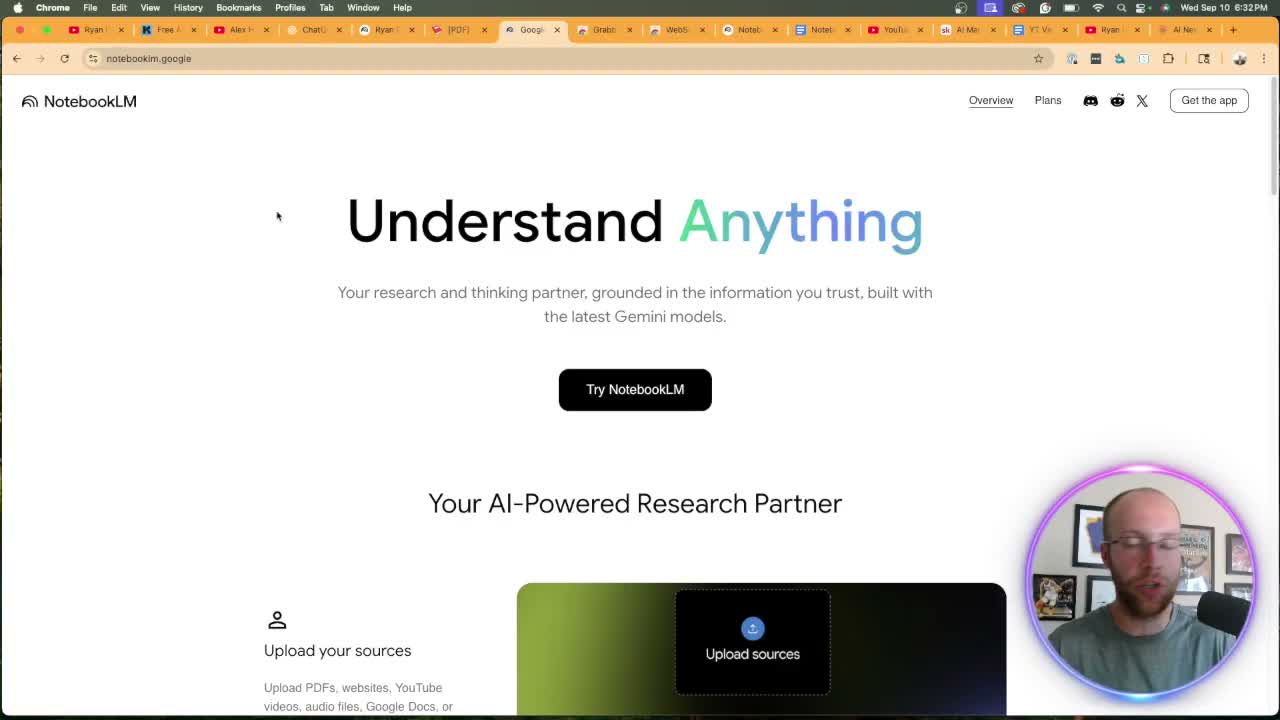
Go to notebooklm.google.com and create a new notebook. Name it something obvious, like "Alex Hormozi YouTube Clone."
The free plan gives you 50 sources per notebook. The paid Gemini Advanced plan gets you more. For most clones, 50 is enough to start.
Step 1: Pull URLs with Grabbit
Go to the creator's YouTube channel and open Grabbit. Add a new action, set it to copy URLs to clipboard, assign a mouse button, and draw a box over the thumbnails you want. Grabbit copies all those URLs at once.
Paste them into a Google Doc first to confirm they copied correctly. Keep batches under 20. More URLs in one batch means more room for errors.
Step 2: Import with WebSync
Open WebSync, select your notebook, paste the URLs, and click Import Video URLs. NotebookLM pulls in each transcript automatically. Ryan loaded 24 Hormozi videos in two batches in about a minute.
Step 3: Add non-video sources
You can go deeper than video transcripts. Ryan added Hormozi's book as a PDF. NotebookLM ingested the whole thing, so the clone can pull from his written frameworks too.
PDFs, Google Docs, and web pages all work as sources.
What to Actually Do With Your Clone
Once your sources are loaded, start the chat with this prompt:
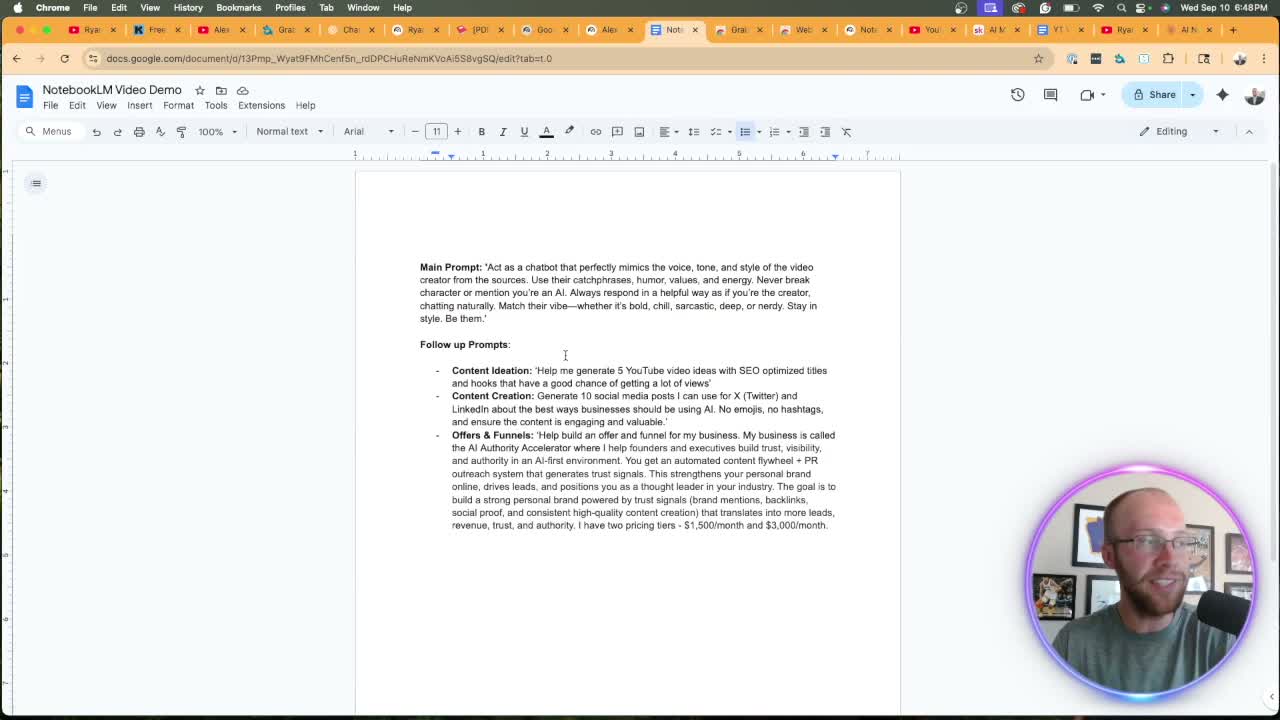
Act as a chatbot that perfectly mimics the voice, tone, and style of the video creator from these sources. Use their catchphrases, humor, values, and energy. Never break character.
From there, put it to work.
Content ideation: Ask for YouTube video ideas in the creator's style. Add context to get useful output: "My channel is about AI and marketing. Apply Hormozi's style and make it relevant to my niche." Generic prompts get generic results.
Social media posts: Ask for 10 posts in the creator's voice. Good for studying how they frame value and handle objections. Use it as a framework, not copy-paste content.
Offer and funnel feedback: Ryan loaded his own business details and asked the Hormozi clone to critique the offer using frameworks from the $100M book. The response cited exact passages from the source.
The citations are what make this different. Every answer points to the specific video or page it drew from.
This is a research and ideation tool. You're studying how a creator thinks and what language they use. The human-in-the-loop step is taking those inputs and building something original with them.
Using someone else's voice wholesale backfires. Use it for learning. Write in your own voice.
Ryan's Final Thoughts
NotebookLM is one of the few AI tools that actually does what it says. Source isolation matters. Citations matter. You can study any creator's body of work in a way custom GPTs can't touch.
Start with 20-30 videos from a creator you want to learn from. Add a book if they have one. Then use the clone to think through your own content in their style.
The free plan is enough to start today. No credit card needed.
Clone YouTube Channel With AI FAQs
How do I clone a YouTube channel with AI for free?
Use NotebookLM. It's free with a Google account. Install Grabbit and WebSync to bulk-import video URLs. The free plan supports 50 sources per notebook. See the step-by-step walkthrough above.
Is it legal to clone someone else's YouTube channel with AI?
Using NotebookLM for research on public content is fine. The line gets crossed when you republish that creator's work as your own or impersonate them publicly. Use it to study frameworks and style. Write your own content from those insights.
What's the difference between NotebookLM and a custom GPT for this?
A custom GPT still pulls from OpenAI's training data even with uploaded files. NotebookLM is source-isolated. Responses come only from what you load in, and each one cites the exact source. That makes it more reliable for studying a specific creator's voice.
How many videos do I need for a good clone?
20-30 is a solid start. You can mix video transcripts with PDFs at the 50-source limit. Focus on the creator's most representative work first, not just their most recent.
Can I use NotebookLM to clone my own YouTube channel?
Yes. Load your own videos and use the clone to generate content ideas or draft posts in your own voice. It becomes a searchable, citable version of your own body of work.