
How to Setup MCPs in Claude Code (Connect Any Tool)
Setting up Claude Code MCPs lets you connect external tools directly inside your coding environment. This guide walks through the exact process I use to add MCP servers, test connections, and start pulling live data without leaving Claude Code.
How Claude Code MCPs Actually Work
Most people hear "MCP" and assume it requires heavy configuration or coding knowledge. That is not the case.
MCP stands for Model Context Protocol. It is an open standard that connects AI tools to external services like GitHub, Notion, databases, and APIs. Inside Claude Code, MCPs act as a bridge between your AI assistant and the outside world. Instead of copying data between tabs, Claude Code pulls it in directly. If you are still untangling where MCP stops and the other pieces start, I broke down Claude Skills vs agents vs MCP without the jargon.
The setup process varies between tools. Some MCPs connect via a cloud URL. Others run locally through a command. But the core workflow stays the same: add the connection, authenticate if needed, and test it.
Creating an MCP Setup Skill
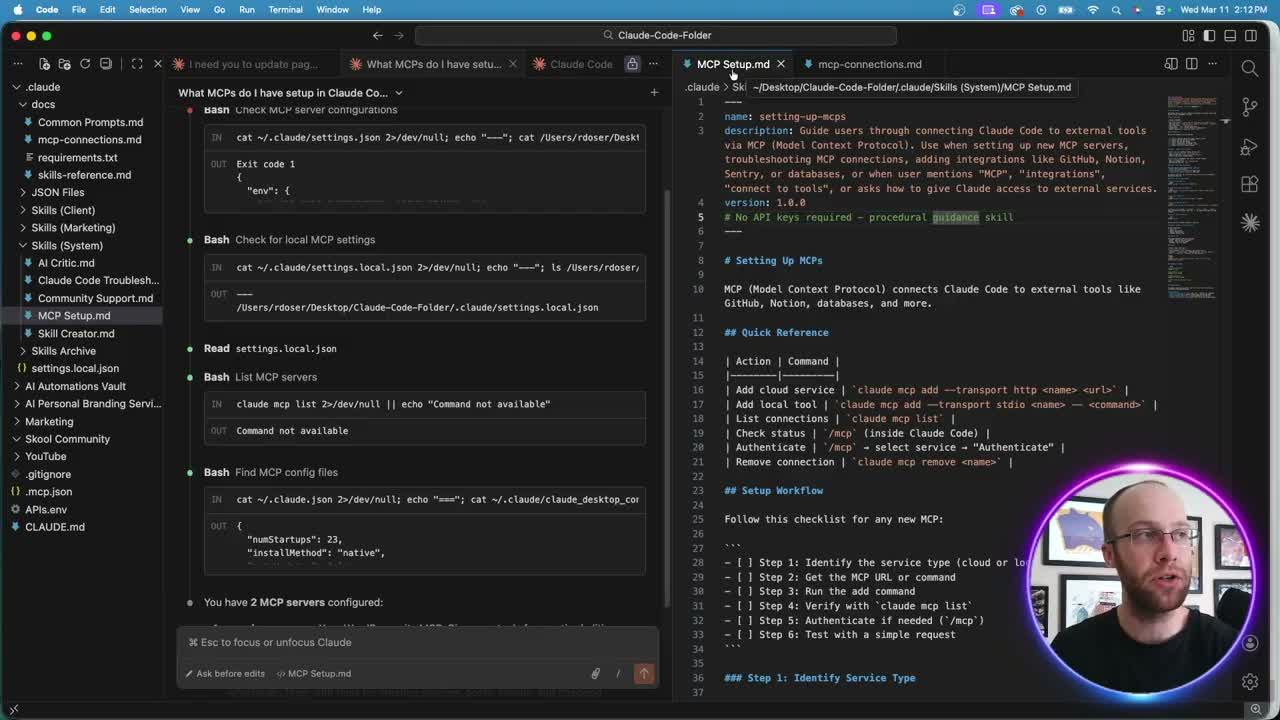
One resource that saves me hours is a skill markdown file. I have one called MCP Setup that acts as a standard operating procedure for Claude Code. It tells the AI exactly how to research, configure, and verify any new MCP connection.
Think of it like a recipe. You hand Claude Code the skill file and a tool name, and it handles the rest. The skill walks through identifying the service type, finding the right MCP URL or command, running the add command, verifying the connection, authenticating, and testing with a simple request.
If you have never created a Claude Code skill before, that process takes about five minutes. You can also grab my exact MCP Setup skill from the Free AI Marketing Essentials Guide linked above.
Step-by-Step Claude Code MCP Setup
Here is the process I walked through in the video using DataForSEO as an example. If you are deciding whether it deserves an account at all, I covered what DataForSEO actually costs and where its data falls short in a full review. Ahrefs ships an MCP server too, and I compared the two in DataForSEO vs Ahrefs.
Recommended Settings
Before starting, I recommend these Claude Code settings:
- Leave the model on your plan's default (Opus 5.5 on every paid plan and the API, as of Claude Code v2.1.280)
- Keep effort at medium or lower with
/effortfor setup work (thinking can't be turned off on Opus 5.5, so effort is the dial that saves usage) - Keep "ask before edits" enabled for your first setup
- Once comfortable, switch to "bypass permissions" for faster workflows
Running the Setup
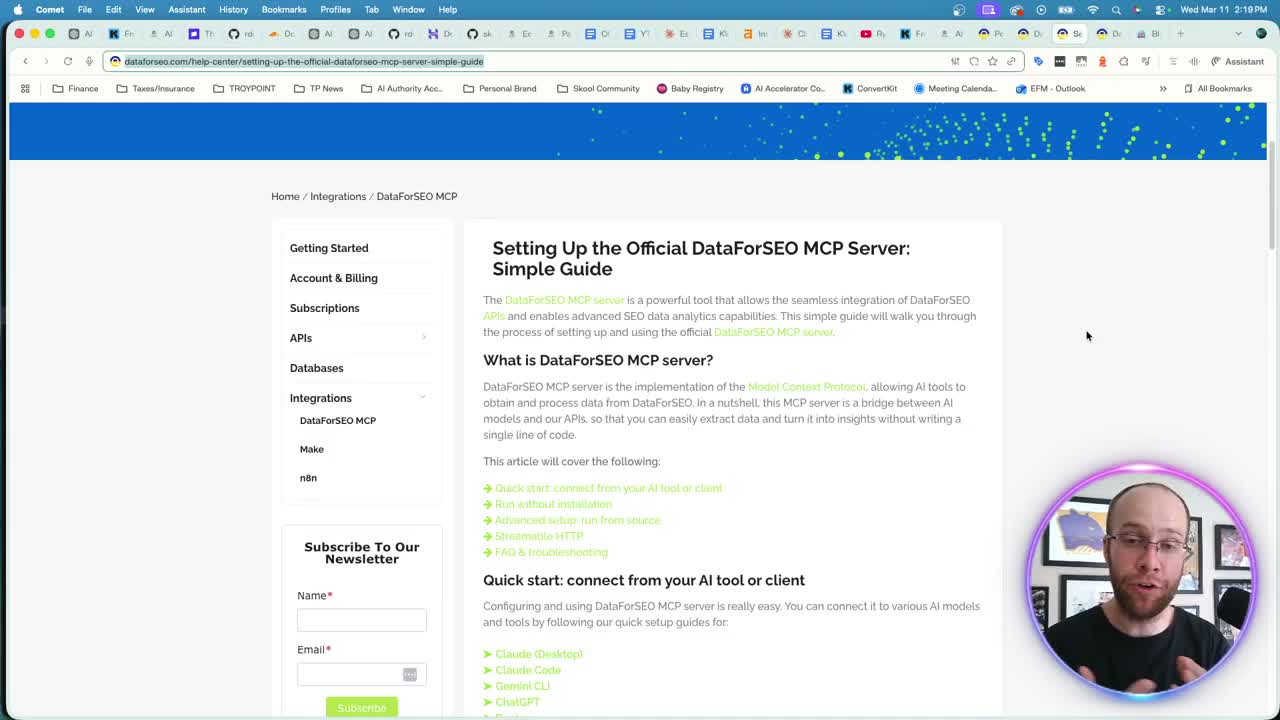
I prompted Claude Code with: "Use my MCP setup skill to set up an MCP connection for DataForSEO." From there, Claude Code read the skill file, researched the DataForSEO MCP documentation, and configured the connection automatically.
The tool asked for my API credentials. After creating a DataForSEO account (which includes a free dollar for testing), I copied over my API email and password. Claude Code stored those credentials and confirmed the connection was active.
Tracking Your Connections
I keep a document called mcp-connections inside my Claude Code workspace that tracks every active MCP. This simple file lists each connection name, what it does, and whether it requires authentication. When you start adding multiple MCPs, this kind of organization prevents confusion. The most demanding MCP I have connected is the Robinhood one, because a bad call there costs real money, and I documented that whole build in my Robinhood trading agent walkthrough.
Testing Your New MCP Connection
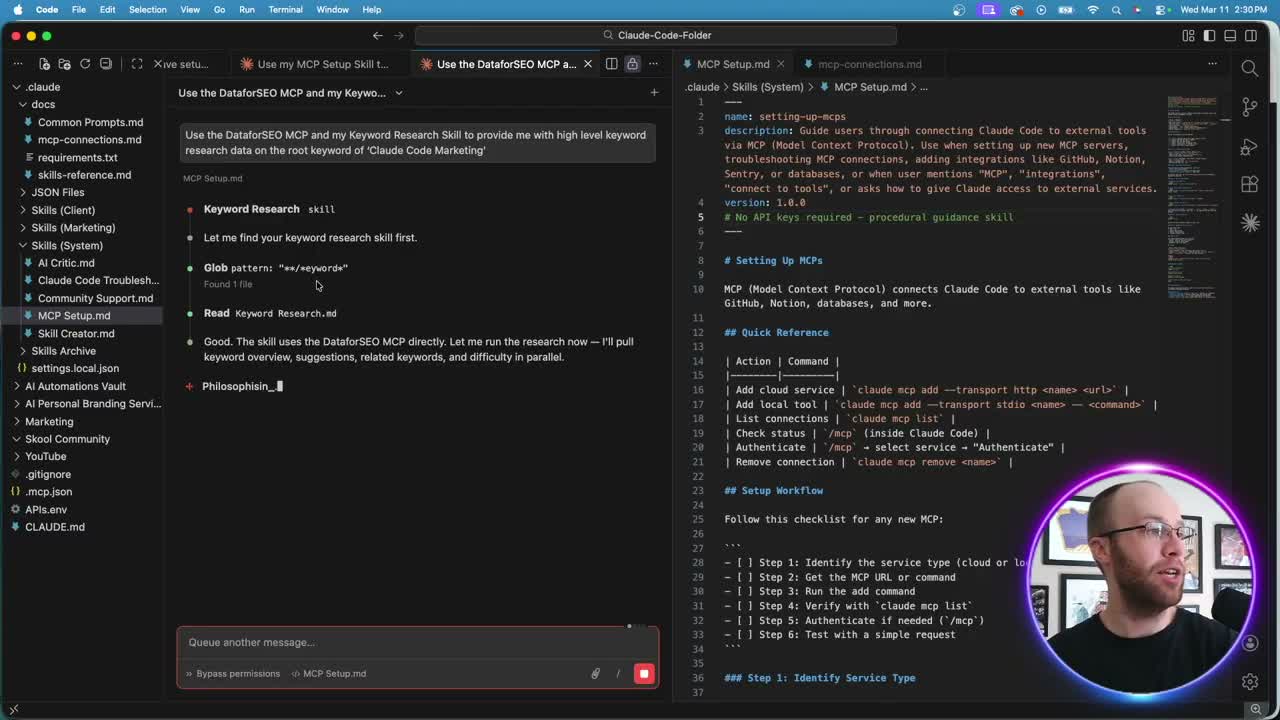
After setup, always test the connection in a fresh Claude Code tab. I opened a new chat, switched to bypass permissions, and prompted: "Use the DataForSEO MCP and my keyword research skill to provide high-level keyword research data on the root keyword of Claude Code Marketing."
Claude Code read my keyword research skill, accessed the DataForSEO MCP directly, and returned monthly search volume, keyword difficulty, and related keyword suggestions. The entire process ran inside Claude Code with zero tab switching.
You can verify the correct APIs were used by checking the Claude Code MCP chat logs for references to the connected service. If the logs show successful API calls with no errors, your connection is solid.
What Makes MCP Integration Worth It
The real value of Claude Code MCP integration is eliminating context switching. Before MCPs, pulling keyword data meant opening a separate tool, running a search, copying results, and pasting them back into your workflow. Now that entire loop happens inside one interface.
MCPs also compound with Claude Code agent teams. You can build agents that automatically pull data from connected services, process it through your skills, and output finished deliverables. The MCP layer is what makes that possible.
The setup process will differ for every tool. But having a reusable MCP setup skill eliminates the guesswork. Follow the steps in the Model Context Protocol documentation for any new service, and Claude Code handles the configuration from there.
Final Thoughts from Ryan
Claude Code MCPs turn a standalone AI assistant into a connected workflow engine. The setup takes minutes, not hours. Once you have a few MCPs running, you will wonder how you worked without them. Start with one connection that matches your daily workflow and build from there. If you are not sure which one that should be, here are the 7 MCP servers I actually run for marketing work, with what each one really costs.
Claude Code MCPs FAQs
How do I add an MCP to Claude Code?
Use the command claude mcp add followed by the transport type and connection URL or local command. Cloud services use --transport http with a URL. Local tools use --transport stdio with a command path. Claude Code stores the configuration automatically after setup.
What is an MCP server in Claude Code?
An MCP server is an external service that connects to Claude Code through the Model Context Protocol. It acts as a bridge between the AI and tools like databases, APIs, or SaaS platforms. Once connected, Claude Code can read and write data from that service directly.
Do I need coding experience to setup MCP in Claude Code?
No. The setup process involves running a few commands and entering credentials. A skill markdown file can automate most of the configuration. If you can copy and paste, you can connect an MCP server to Claude Code.
Can I connect multiple MCPs to Claude Code at once?
Yes. Claude Code supports multiple simultaneous MCP connections. Each connection runs independently. I track all of mine in a simple markdown file inside my workspace to stay organized.
What happens if my MCP connection fails?
Check the chat logs for error messages. Common issues include expired API credentials, incorrect URLs, or missing authentication. The /mcp command inside Claude Code shows connection status and lets you re-authenticate if needed.